
Logging in to TINA is a simple process that combines account authentication with an additional End-to-End Encryption (E2EE) unlock step.
Your account password verifies your identity. The E2EE PIN unlocks the organization’s encryption key in your browser. These are separate security mechanisms and serve different purposes.
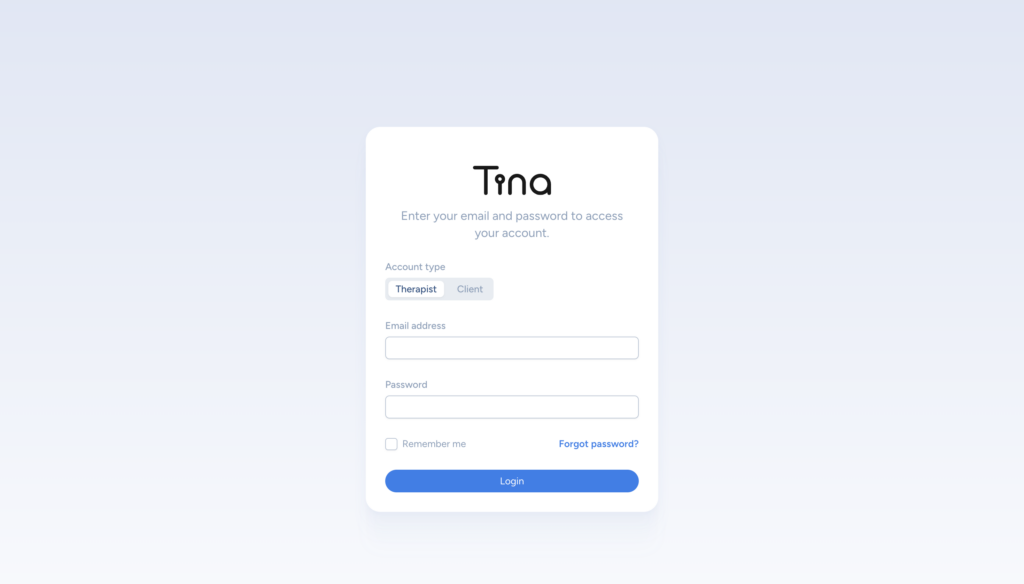
Logging In to TINA
Step 1: Open the TINA Login Page
Visit the official TINA application at app.tina-assistant.com.
Enter your account email address and password, then select Log in.
Keep your account credentials private and never share them with other users.
Step 2: Complete Account Authentication
TINA verifies your email address and password through the secure login process.
If you are logging in from a new device, you may also be asked to complete verification step, depending on your organization’s authentication settings.
If you are logging in your first time you will get prompted to download recovery codes. They are used to reset or update the password. It adds extra protection against brute-forcing. Without it you cannot update your password.
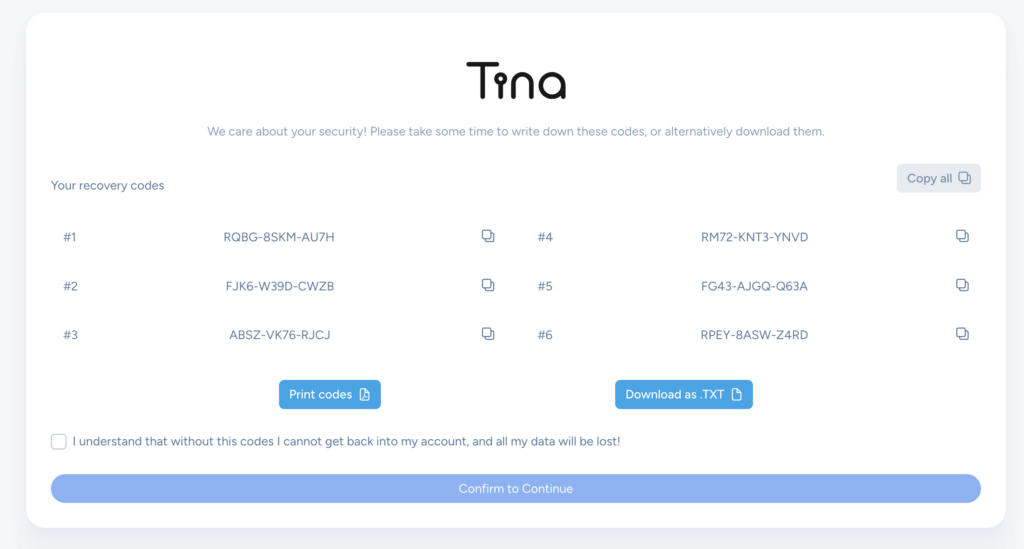
Recovery Codes and E2EE PINs Are Different
TINA use both a recovery codes and an E2EE PIN, but they are not interchangeable.
Recovery Codes
A recovery codes are used for account-related recovery tasks, such as:
- Verifying your identity during a password recovery process
- Authorizing a password update
A recovery code does not unlock encrypted patient data and does not make the E2EE session ready.
E2EE PIN
The E2EE PIN is used to unlock the organization’s client-side encryption key. PIN enables end-to-end encryption of patient health data.
It is used after account login when TINA needs to access protected information. The current E2EE setup uses a six-digit numeric PIN.
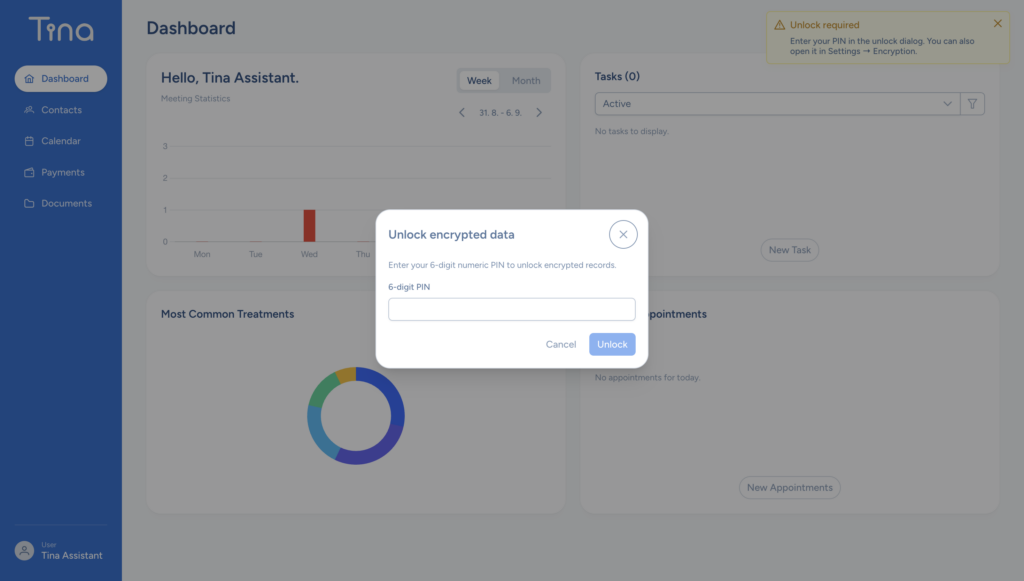
Step 3: Unlock End-to-End Encryption
If your organization has E2EE enabled and an encryption key has already been configured, TINA displays an E2EE unlock prompt after login.
Enter the organization’s E2EE PIN.
Once the E2EE step is complete, the session is ready to decrypt protected information and perform encrypted writes.
Logging In from a New Computer or Browser
The E2EE key package is associated with the organization. When you sign in from a new device:
- Log in with your TINA email and password.
- The browser displays the E2EE unlock prompt.
- Enter the same organization E2EE PIN.
- You can access protected data after the session becomes ready.
First-Time Organization Setup
If E2EE has not yet been configured for your organization, an authorized (admin) user may be asked to set it up.
Depending on the organization’s existing encryption configuration, TINA may provide options to:
- Create a new six-digit E2EE PIN
- Import legacy encryption key material
- Unlock an existing organization encryption setup
The raw PIN and unencrypted data key are not sent to the server.
What If the E2EE PIN Is Incorrect?
If the PIN is incorrect:
- The E2EE session remains locked.
- Protected values cannot be decrypted.
- Sensitive write operations cannot proceed.
- You can try entering the PIN again.
A security code, account password, or password-reset token cannot substitute for the E2EE PIN.
If you have forgotten the E2EE PIN, contact your organization administrator or TINA support before creating a new encryption configuration. Creating a new encryption key may prevent access to data protected with the previous key.
Accessing the Dashboard
After successful account login and, when required, E2EE unlock, TINA redirects you to the dashboard.
Your available features depend on:
- Your user role
- Your organization’s settings
- Your subscription plan
- Whether the E2EE session is unlocked
Some non-sensitive information may remain available while E2EE is locked, but encrypted patient information and sensitive write operations require an active E2EE session.
Tips for a Secure Login
- Keep your TINA email address and account password private.
- Keep your E2EE PIN separate from your account password.
- Do not share your E2EE PIN through insecure communication channels.
- Do not store the PIN in an unencrypted document or browser note.
- Never share a recovery code unless you are completing the authorized security flow that requested it.
- Use only the official TINA login address.
- Log out when using a shared or public computer.
- Contact your organization administrator or TINA support if you suspect that your password, security code, or E2EE PIN has been exposed.
Troubleshooting
I Can Log In but Cannot View Protected Data
Your account authentication may have succeeded while the E2EE session remains locked. Enter the correct organization E2EE PIN when prompted.
I Received a Recovery Codes
A recovery codes is normally related to account verification or password recovery. It does not unlock E2EE-protected data. Follow the instructions in the security flow that requested the code.
The E2EE Prompt Appears on Every New Device
This is expected. The encryption key is unlocked in the browser for the active session. Enter the organization’s E2EE PIN on each new device or browser.
I Cannot Remember the E2EE PIN
Do not create a new encryption key without first checking whether the existing organization data can be recovered. Contact your organization administrator or TINA support for assistance.
Summary
TINA uses multiple security layers during login:
- Email and password authenticate your account.
- Recovery codes support account verification and recovery flows.
- The E2EE PIN unlocks the organization’s encryption key locally.
- The dashboard becomes available after the required authentication and encryption steps are complete.
Recovery codes and E2EE PINs have different purposes. A recovery code can help verify or recover an account, while only the correct E2EE PIN can unlock the encryption key needed to access protected patient information.